Calendar Sync - Connect Google Calendar and Outlook
Sync Google Calendar or Outlook with GroomSome, one-way or two-way. See personal appointments alongside your grooming bookings and stop clients booking over them online.
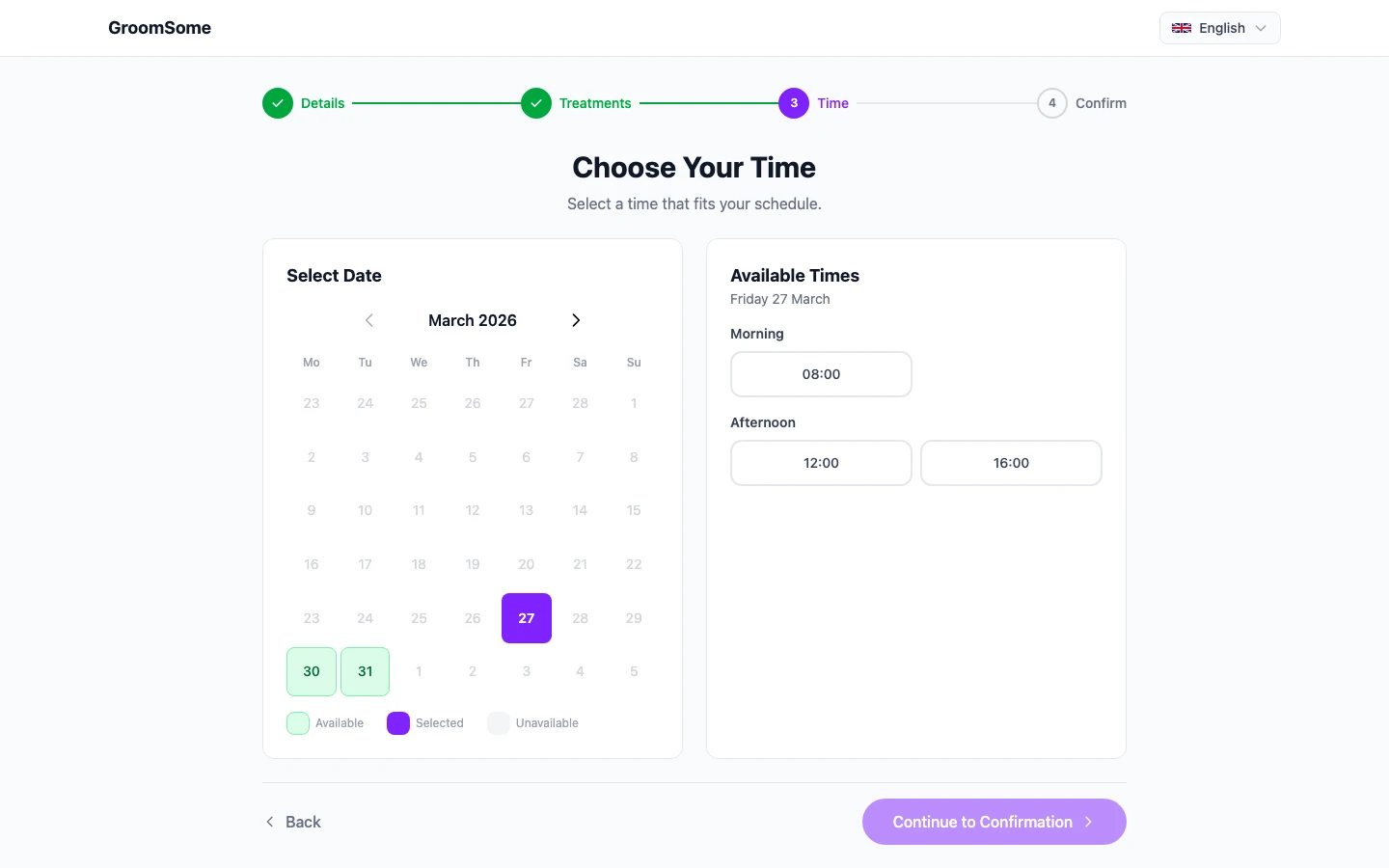
If you keep your personal life in Google Calendar or Outlook (school runs, appointments, family events) and your grooming bookings in a separate system, double-booking is inevitable. Not often, but enough to matter. A Wednesday parent-teacher meeting overlaps a client booking you forgot to move. A Saturday wedding gets booked over.
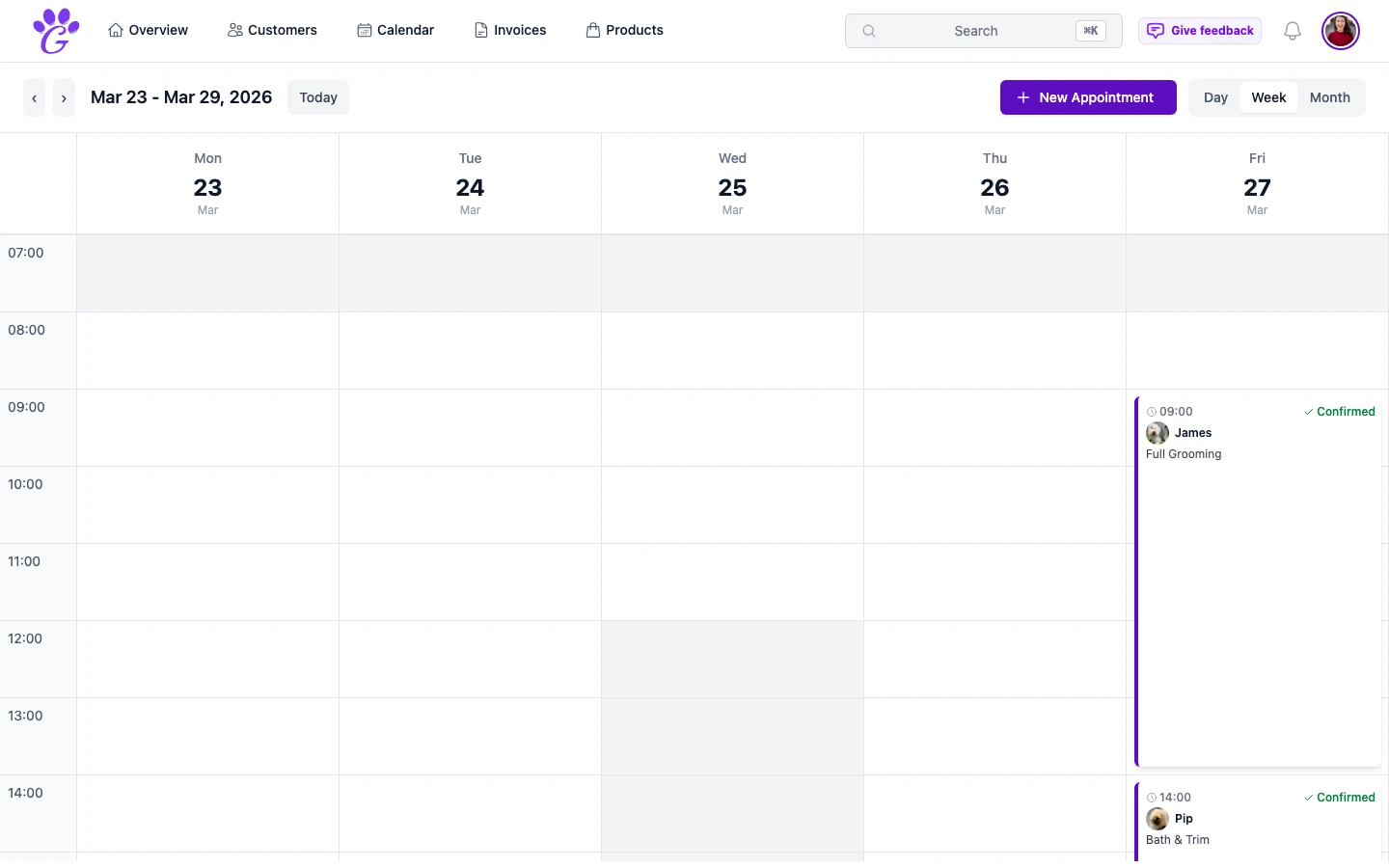
Calendar sync fixes this at the source. Events you add to Google Calendar or Outlook block time on the grooming side, so clients can't book over them online, and with two-way sync your grooming bookings also appear in the calendar app you already look at every day.
What is calendar sync in GroomSome?
Calendar sync connects your GroomSome calendar to your Google Calendar or Outlook (one of the two at a time). Personal events you add in Google or Outlook appear in GroomSome and block online bookings on top of them; with two-way sync, grooming appointments appear in your external calendar as well. The sync runs every 15 minutes.
You choose the direction. The default is one-way: events from Google or Outlook come into GroomSome. Others want full two-way sync so their grooming bookings show up in Google or Outlook too. Both work, and you can change your mind.
Why calendar sync matters
The practical gain is small conflicts disappearing, but the compounding benefit is peace of mind. You stop worrying that your week has hidden overlaps.
- No more accidental double-booking. A Tuesday dentist appointment in Google Calendar appears as busy in GroomSome before clients can book over it.
- One view for the day. With two-way sync, open your phone calendar in the morning and see grooming and non-grooming together.
- Holidays carry over. School holidays, family trips, public holidays; all block the online booking page automatically.
- Less mental overhead. You stop keeping two mental copies of "this week" in your head.
Key capabilities
- Google Calendar two-way sync.
- Outlook / Microsoft 365 two-way sync.
- Direction selection: one-way (Google or Outlook → GroomSome), or two-way.
- Regular updates: the sync runs every 15 minutes, so with two-way sync a reschedule in GroomSome reaches Google Calendar at the next run.
How to set it up
One-time setup, five minutes. You won't touch it again.
- Go to Settings → Appointments (an admin does this).
- Choose Google or Outlook and authorise the connection.
- Decide the direction: one-way or two-way. Two-way is recommended for most salons.
Once connected, everything flows automatically. You don't need to open the sync screen again.
Common gotchas
- Know which calendar you're syncing. GroomSome syncs with the main calendar of the account you connect. If you share that calendar with family, two-way sync means they see Doodle Bella's appointments.
- Don't delete a booking from Google. Always reschedule or cancel from GroomSome. Deletions in Google don't always propagate properly.
- Watch reminders. Google Calendar sends its own reminders; GroomSome sends reminders to clients. These are separate systems, so adjust your expectations so you're not confused.
- Tokens expire. Once every few months you may need to re-authorise. The app will prompt you.
Calendar sync is one of those features that does its job silently and then disappears into the background. You set it up once, and it stops being a thing to think about. What you're left with is one cleaner view of your week (grooming and life together) without the nagging fear that you booked over something you shouldn't have.