Easy Data Import - Switch Grooming Software Without Starting Over
Import customers, pets, products and price lists from your existing system. Validation, breed matching and conflict handling built in, so migrations don't lose data.
The number one reason groomers don't switch software is fear of losing data. Three years of client records, pet histories, prices, and product lists can be locked inside whatever you're using today. Even the idea of migrating feels like a project you don't have time for, so you stay on a system you've already outgrown.
Data import is the un-scary way to move. You don't retype anything. You don't lose history. You upload what you have, the new system validates it, and you're running with a live database on the other side. This is less dramatic than it sounds, and it's exactly what most groomers who switch actually do.
What is data import in GroomSome?
Data import is the built-in path to load your existing customers, pets, products, and price lists into GroomSome from a file. You export what you have from your current system (or a spreadsheet) as a CSV or Excel file, upload it, and GroomSome validates, matches, and imports the records, flagging anything that needs a human decision.
The key word is validated. Imports fail, silently, when systems accept any data and quietly mangle it. A good import flags rows that don't match a known breed, rows with missing phones, rows with duplicate customers, and lets you fix them before they end up in your live data.
Why data import matters
If import is painful, groomers don't switch, even when the new tool is clearly better. Painless import is what turns "maybe next year" into "we did it last weekend".
- No rekeying. Three years of customers and pets, loaded automatically. What took a team a month to build now takes an hour to carry across.
- Validation catches problems. Missing emails, duplicated customers, breed typos; flagged, not silently imported as bad data.
- No data loss. Every column you map lands in a sensible place. No "where did my medical notes go?" a week later.
- Breed matching. The import cross-references breeds against the structured breed list, so "Golden Doodle" and "Goldendoodle" become the same breed, not two.
- Conflict resolution. If a customer already exists with the same email, or the same name and phone number, you choose: skip or overwrite. No silent overwrites.
What you can import
GroomSome supports the main data types a grooming business actually has:
- Customers: name, phone, email, address, notes.
- Pets: name, breed, weight, age and notes, on the same row as their owner.
- Customer-to-pet relationships: one customer with three dogs imports cleanly.
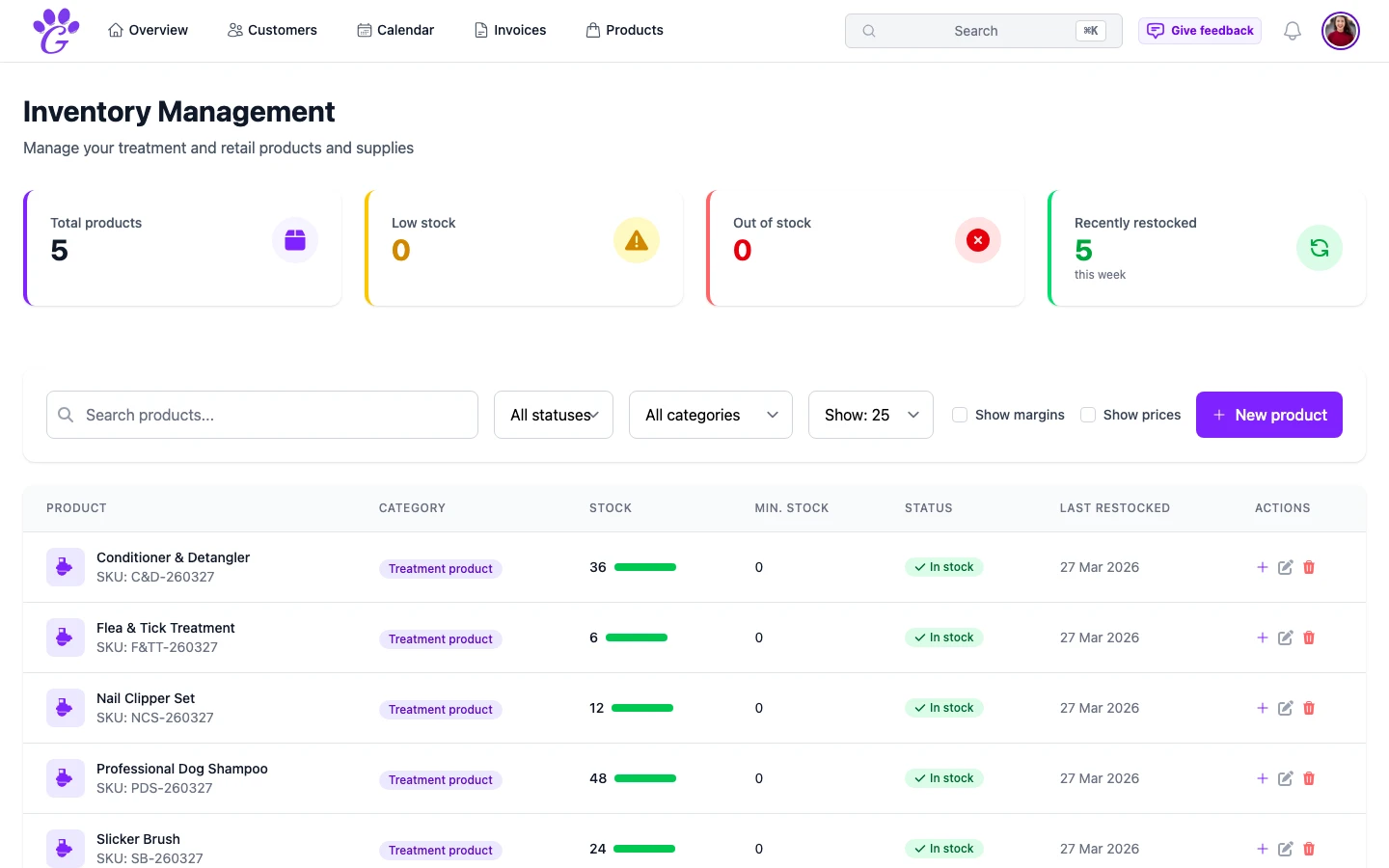
- Products: name, price, article number, supplier, stock.
- Price lists: base prices and breed-specific pricing.
Appointment history isn't imported: the import covers customers and their pets. Most salons start fresh on appointments and keep the old calendar read-only as a reference.
How the import flow works
- Export from your current system. Most grooming tools and spreadsheets export CSV or Excel.
- Upload to GroomSome. One file at a time: customers with their pets first, products second.
- Map the columns. GroomSome suggests matches automatically; you adjust the few it's unsure about.
- Review validation warnings. Duplicates, missing fields, unknown breeds; all flagged.
- Confirm the import. GroomSome writes the records and shows a summary.
- Spot-check. Open five random customer records to make sure they look right.
Steps 1 to 6 usually take under an hour for a salon with a couple of thousand records.
What if your existing system won't export?
Some older tools don't have an export. A few workarounds:
- Request the export from support. Most tools (even reluctant ones) will produce a CSV if asked.
- Use a screen-scrape script. A developer friend or a freelance Python script can do in a weekend what re-typing would take a month.
- Import from a spreadsheet. If you've been keeping a parallel spreadsheet (even a messy one), that's often good enough.
- Start fresh for appointment history, and import customers and pets only. The most valuable records migrate; the ephemeral ones stay where they were.
How to minimise the pain
A few small habits turn a scary migration into a clean one:
- Run the import on a quiet day. Not Christmas Eve. A Monday morning in February is ideal.
- Keep the old system open for two weeks. Reference, not active. Gives you a safety net.
- Import in small batches first. Ten customers, validate, inspect, then the rest. Catch problems while they're small.
- Don't delete the old data for 60 days. Once the new system is proving itself, the old copy is redundant, but wait until you're sure.
Data migration used to be the reason groomers stayed on software they hated. With a proper import flow (validation, breed matching, conflict resolution) it becomes an afternoon's work. The hardest decision is deciding to switch; the mechanics are mostly already solved.